

Are you experiencing issues with your Apollo Group TV app on your Firestick? Keeping your app updated is crucial for optimal performance, accessing new features, and maintaining smooth, buffer-free streaming. This guide will walk you through the simple, step-by-step process of how to update Apollo TV on Firestick, ensuring you always have the best viewing experience with Apollo Group TV.
This tutorial is based on the methods demonstrated in the helpful YouTube video “How to Update Apollo Group TV App on Firestick”, making it easy for any US user to follow along.
Why Updating Apollo TV on Firestick is Crucial
Before we dive into how to update Apollo TV on Firestick, let’s understand why it’s so important:
- Access to New Features: Updates often bring exciting new functionalities and improvements.
- Bug Fixes: Resolves any glitches or issues from previous versions, ensuring a smoother experience.
- Enhanced Performance: Optimizes the app for faster loading times and better streaming quality.
- Security Patches: Protects your device and data from potential vulnerabilities.
Step-by-Step Guide: How to Update Apollo TV on Firestick
The YouTube video demonstrates two primary methods for updating your Apollo Group TV app: checking for updates within the app and reinstalling the app if necessary. Let’s break down each one.
Method 1: Updating Within the Apollo Group TV App (Recommended)
This is the easiest and most recommended method to update Apollo TV on Firestick.
- Launch the Apollo Group TV Application:
- From your Firestick home screen, navigate to “Your Apps & Channels.”
- Find and open the Apollo Group TV app.
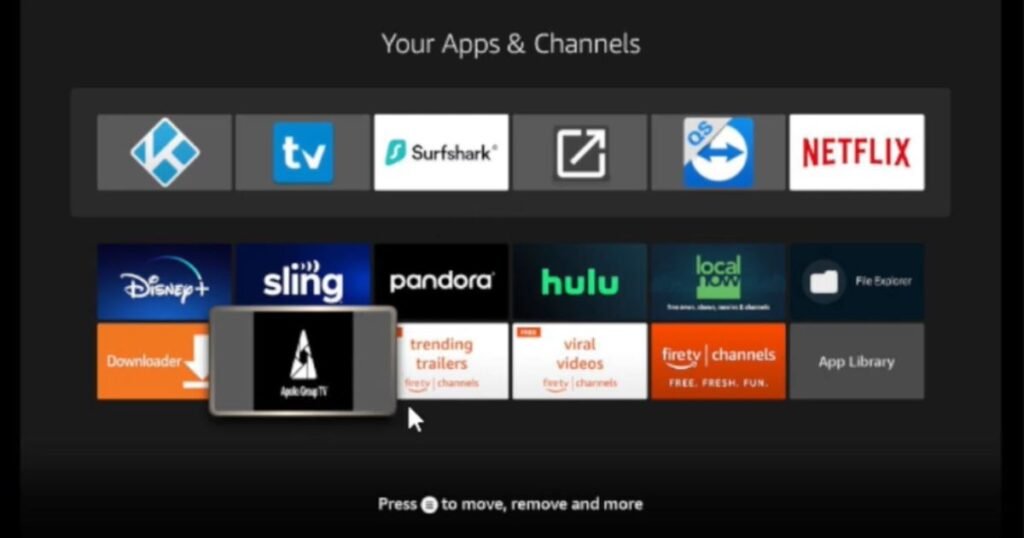
- Access the Settings Menu:
- Once inside the Apollo Group TV app, use your Firestick remote to navigate to the main menu.
- Look for the “Settings” or “System Settings” option. This is usually represented by a gear icon or similar.
- Check for Updates:
- Within the settings menu, you should find an option like “Check for Updates,” “System Update,” or “App Update.”
- Select this option. The app will then connect to its servers to see if a newer version is available.
- Download and Install the Update:
- If an update is found, you will be prompted to download it. Confirm this action.
- Once downloaded, the app will usually ask to install the update. Follow the on-screen instructions. This might require the app to restart.
- After the installation is complete, the app will relaunch, and you should be running the latest version of Apollo Group TV.
Method 2: Reinstalling the Apollo Group TV App (If Method 1 Fails)
If you encounter issues with Method 1 or if the app consistently crashes, a clean reinstallation is often the best solution. This involves uninstalling the current version and then installing the latest one.
Part A: Uninstalling the Existing Apollo Group TV App
- Go to Firestick Settings:
- From your Firestick home screen, navigate to the top menu and select “Settings” (the gear icon).
- Select “Applications”:
- Scroll down and click on “Applications.”
- Go to “Manage Installed Applications”:
- Find and select “Manage Installed Applications.”
- Find and Uninstall Apollo Group TV:
- Scroll through the list until you find “Apollo Group TV.”
- Select it, then choose “Uninstall.”
- Confirm the uninstallation when prompted.
Part B: Installing the Latest Apollo Group TV App
To install the latest version, you’ll need the Downloader app. If you don’t have it, install it first from the Amazon App Store.
- Open the Downloader App:
- From your Firestick home screen, open the “Downloader” app.
- Enter the Official Apollo Group TV Download URL:
- In the URL bar of the Downloader app, carefully type the official download link provided by Apollo Group TV for the latest APK. Always ensure you are using the official URL to avoid malicious software. (The YouTube video might mention a specific URL, or you can find it on the official Apollo Group TV website’s Installation Guide or Channels List).
- Download the APK File:
- Click “Go” or “Download.” The latest APK file for Apollo Group TV will begin downloading to your Firestick.
- Install the APK File:
- Once the download is complete, a prompt will appear asking you to install the application.
- Click “Install.”
- Open and Log In:
- After the installation is finished, you can click “Open” to launch the newly updated Apollo Group TV app.
- You may need to log in again with your credentials.
Important Tips for Smooth Updates
- Stable Internet Connection: Ensure your Firestick has a strong and stable Wi-Fi connection during the update process to prevent corruption.
- Clear Cache (Optional but Recommended): Before updating or reinstalling, you can go to Firestick Settings > Applications > Manage Installed Applications > Apollo Group TV > Clear Cache. This can help resolve minor issues.
- Sufficient Storage: Make sure your Firestick has enough free storage space for the update file.
Stay Updated for the Best Apollo Group TV Experience
Knowing how to update Apollo TV on Firestick is essential for any Apollo Group TV subscriber. By following these straightforward steps, you can ensure your streaming experience is always at its best—with all the latest features, bug fixes, and performance enhancements. Enjoy uninterrupted access to thousands of channels and VOD content with the most current version of your favorite IPTV app!
FAQs on Updating Apollo TV on Firestick
1. How often should I update Apollo TV on Firestick?
It’s recommended to check for updates every few weeks, or whenever you notice a performance issue or hear about new features being released by Apollo Group TV.
2. What if the update fails or gets stuck?
First, ensure your internet connection is stable. If it still fails, try restarting your Firestick and then attempt Method 1 again. If problems persist, proceed with Method 2 (reinstallation).
3. Will updating delete my login information?
Usually, minor in-app updates (Method 1) retain your login. However, a full reinstallation (Method 2) will require you to log in again with your Apollo Group TV credentials.
4. Where can I find the official download link for Apollo Group TV?
Always refer to the official Apollo Group TV website (apollogrouptvs.tech) or contact our support team for the latest and safest download links. Avoid unofficial sources.
Need Further Assistance?
If you have any questions or run into trouble while updating your Apollo Group TV app on Firestick, don’t hesitate to reach out!
- Visit our Contact Us page.
- Send us an email.
- Connect with us directly on WhatsApp for immediate support!


